⌚Enforcing Time Zone and DST Compliance on Windows Servers Using GPO and Scheduled Tasks
🛠️ Why This Matters
Time zone misconfigurations — especially those affecting Daylight Saving Time (DST) — can cause:
- Scheduled tasks to run early or late
- Timestamp mismatches in logs
- Errors in time-sensitive integrations
Windows doesn’t always honour DST automatically, particularly in Azure VMs, automated deployments, or custom images.
🔁 What’s Changed in 2025?
As of April 2025, we revised our approach to enforce time zone compliance in a cleaner, more manageable way:
- 🧹 Removed all registry-based enforcement from existing GPOs
- ⚙️ Executed a one-time PowerShell script to correct servers incorrectly set to
UTC(excluding domain controllers) - ⏲️ Updated the GPO to use a Scheduled Task that sets the correct time zone at startup (
GMT Standard Time)
📋 Audit Process: Time Zone and NTP Source Check
Before remediation, an audit was performed across the server estate to confirm the current time zone and time sync source for each host.
🔎 Time Zone Audit Script
# Set your target OU
$OU = "OU=Servers,DC=yourdomain,DC=local"

# Prompt for credentials once
$cred = Get-Credential

# Optional: output to file
$OutputCsv = "C:\Temp\TimeZoneAudit.csv"
$results = @()

# Get all enabled computer objects in the OU
$servers = Get-ADComputer -Filter {Enabled -eq $true} -SearchBase $OU -Properties Name | Select-Object -ExpandProperty Name

foreach ($server in $servers) {
    Write-Host "`nConnecting to $server..." -ForegroundColor Cyan
    try {
        $tzInfo = Invoke-Command -ComputerName $server -Credential $cred -ScriptBlock {
            $tz = Get-TimeZone
            $source = (w32tm /query /source) -join ''
            $status = (w32tm /query /status | Out-String).Trim()
            [PSCustomObject]@{
                ComputerName     = $env:COMPUTERNAME
                TimeZoneId       = $tz.Id
                TimeZoneDisplay  = $tz.DisplayName
                CurrentTime      = (Get-Date).ToString("yyyy-MM-dd HH:mm:ss")
                TimeSource       = $source
                SyncStatus       = $status
            }
        } -ErrorAction Stop

        $results += $tzInfo
    }
    catch {
        Write-Warning "Failed to connect to ${server}: $_"
        $results += [PSCustomObject]@{
            ComputerName     = $server
            TimeZoneId       = "ERROR"
            TimeZoneDisplay  = "ERROR"
            CurrentTime      = "N/A"
            TimeSource       = "N/A"
            SyncStatus       = "N/A"
        }
    }
}

# Output results
$results | Format-Table -AutoSize

# Save to CSV
$results | Export-Csv -NoTypeInformation -Path $OutputCsv
Write-Host "`nAudit complete. Results saved to $OutputCsv" -ForegroundColor Green
🧰 GPO-Based Scheduled Task (Preferred Solution)
Instead of relying on registry modifications, we now use a Scheduled Task deployed via Group Policy.
✅ Task Overview
- Trigger: At Startup
- Action: Run
powershell.exe - Arguments:
💡 The GPO targets all domain-joined servers. Servers in isolated environments (e.g. DMZ) or not joined to the domain are excluded.
📸 Scheduled Task Screenshots
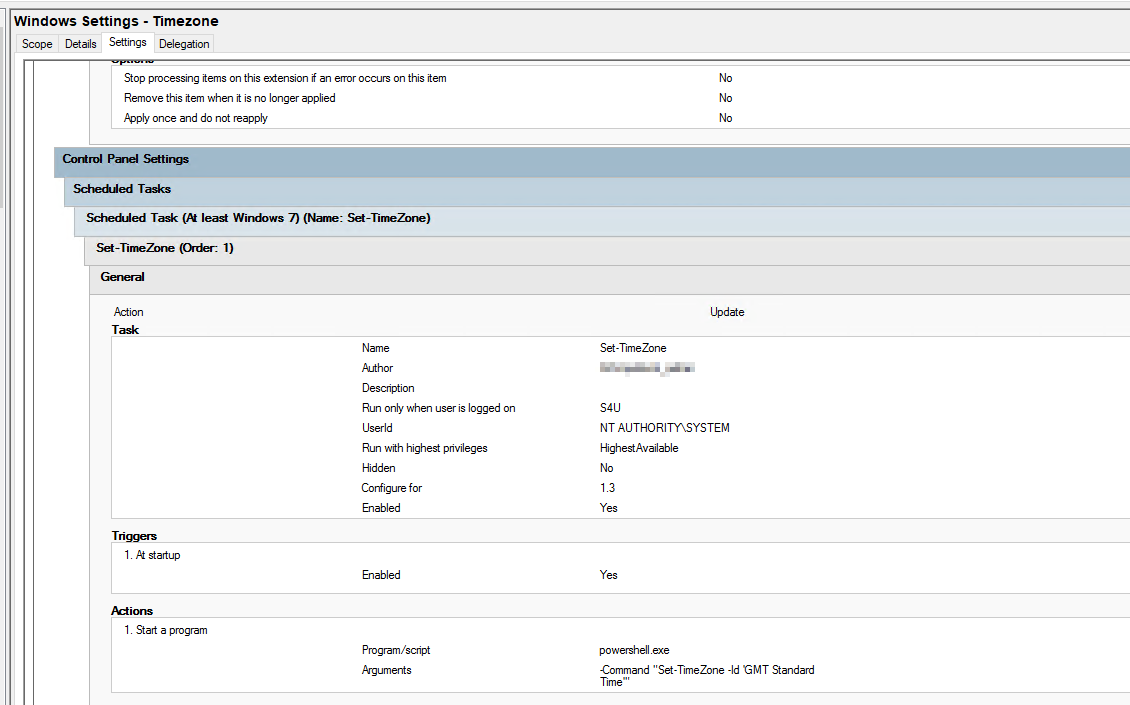
Fig 1: Scheduled Task created via GPO Preferences
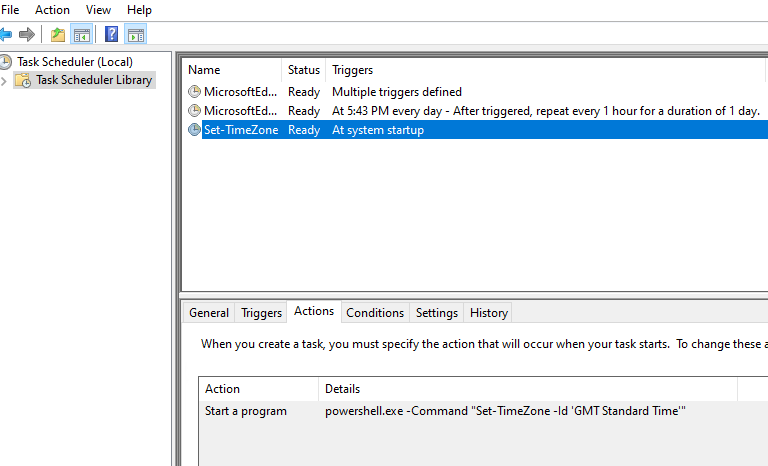
Fig 2: PowerShell command configuring the time zone
🛠️ One-Off Remediation Script: Setting the Time Zone
For servers identified as incorrect in the audit, the following script was used to apply the fix:
# List of servers to correct (e.g., from your audit results)
$servers = @(
    "server1",
    "server2",
    "server3"
)

# Prompt for credentials if needed
$cred = Get-Credential

foreach ($server in $servers) {
    Write-Host "Setting time zone on $server..." -ForegroundColor Cyan
    try {
        Invoke-Command -ComputerName $server -Credential $cred -ScriptBlock {
            Set-TimeZone -Id "GMT Standard Time"
        } -ErrorAction Stop

        Write-Host "✔ $server: Time zone set to GMT Standard Time" -ForegroundColor Green
    }
    catch {
        Write-Warning "✖ Failed to set time zone on ${server}: $_"
    }
}
🔍 How to Verify Time Zone + DST Compliance
Use these PowerShell commands to verify:
And for registry inspection (read-only):
Get-ItemProperty "HKLM:\SYSTEM\CurrentControlSet\Control\TimeZoneInformation" |
  Select-Object TimeZoneKeyName, DisableAutoDaylightTimeSet, DynamicDaylightTimeDisabled
Expected values:
TimeZoneKeyName:"GMT Standard Time"DisableAutoDaylightTimeSet:0DynamicDaylightTimeDisabled:0
🧼 Summary
To ensure consistent time zone configuration and DST compliance:
- Use a GPO-based Scheduled Task to set
GMT Standard Timeat startup - Run a one-time audit and remediation script to fix legacy misconfigurations
- Avoid registry edits — they’re no longer required
- Validate using
Get-TimeZoneand confirm time sync viaw32tm
📘 Next Steps
- [ ] Extend to Azure Arc or Intune-managed servers
- [ ] Monitor for changes in Windows DST behaviour in future builds
- [ ] Automate reporting to maintain compliance across environments
🧠 Final Thoughts
This GPO+script approach delivers a clean, scalable way to enforce time zone standards and DST logic — without relying on brittle registry changes.
Let me know if you'd like help adapting this for cloud-native or hybrid environments!